
|
Customer Dockets |
| Back to Content |
|
Creating/editing the customer
related documents (Invoices, Quotations, Delivery Dockets, etc.)
Step 1 Step 2 Step 3 Step 4 Dispatching the products Step 5 Step 6 Step 1
Tap Work with dockets button to open Dockets window.
Tap
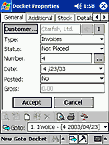
For example, you have chosen Invoice docket type. You are starting from General
window. Enter the customer in Customer... field by tapping the corresponding button and
selecting the customer from the list (I button allows you to view/edit this customer details).
If you have selected Purchase Order docket type, this field will be named
Supplier... and the content will be selected from the existing list of suppliers - all
other fields are the same but the automatic processing of this docket will be, of course,
different. The content of Type field is corresponding to your original choice but
if you wish, you can change it by tapping
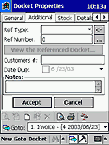
Additional window allows you to add secondary reference info to your docket. If
you wish to reference some other docket related to current one, define its Ref Type
by selecting the proper value from the list and enter its Ref Number. If this
docket exists in current database, you can check its details by tapping View the
Referenced Docket... button. If you know the number your customer will assign/has
assigned to this docket, you can enter it in Customers # field. If this docket is valid
until certain date, you can check Date Due box and enter the date with
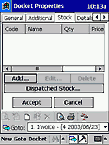
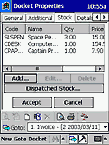
Stock window allows referring this docket to your current stock; processing
the docket by system will affect the stock content and status automatically. Tap Add...
button to add the products existing in your stock to the docket (by selecting the necessary
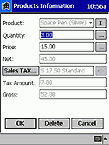
product from the list). When adding product, you will be able to set Product Information
in corresponding window.
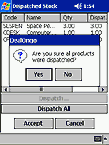
After you finished adding the products to docket, you can proceed to next window or (if the products are already dispatched), tap Dispatched Stock... button. In Dispatched Stock window Dispatch... button allows to dispatch the product per item while Dispatch All button dispatches the whole list. The products dispatched are automatically subtracted from your stock once you have confirmed the operation. Step 5
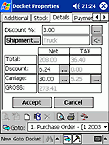
Now you can check the docket summary in Details window. Discount % is the default discount applied to this customer (you have defined it in CUSTOMER ACCOUNT chapter), but you can alter it by tapping ... button. Shipment... field defines the shipment type (as usual, you can select it from the list or create own type). Shipment type will define the carriage cost for the products included in docket. Bottom part of this window is automatically calculated summary of your docket (however you still can adjust Discount and Carriage values manually). Step 6
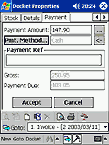
Payment window allows you to accept the payment to current docket (right now or
later). Enter the Payment Amount, then tap Pmt. Method... button to select the
method of payment from the list or create own method. Payment Ref field is allowing
to enter the reference related to payment (if any). Gross value is full amount due
according to this docket; it is calculated automatically. Payment Due is unpaid amount
(if the payment is made by parts).
|

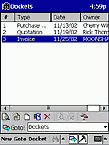
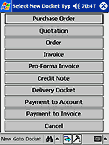
 button to get the list
of available docket types; then choose the proper type and start entering new docket
(or select existing document and tap
button to get the list
of available docket types; then choose the proper type and start entering new docket
(or select existing document and tap  to start editing it).
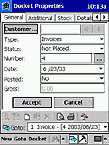
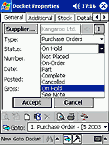
 and selecting other available
type. Set the docket status in Status field (select the necessary value from the list).
Number assigned is the next number after previously entered docket's number (but you can set
your own number here by manual edit or ... button). The Date will be automatically
set as "today", but you can select other date by tapping
and selecting other available
type. Set the docket status in Status field (select the necessary value from the list).
Number assigned is the next number after previously entered docket's number (but you can set
your own number here by manual edit or ... button). The Date will be automatically
set as "today", but you can select other date by tapping
| Back to Content |
| © PDASet Software |